
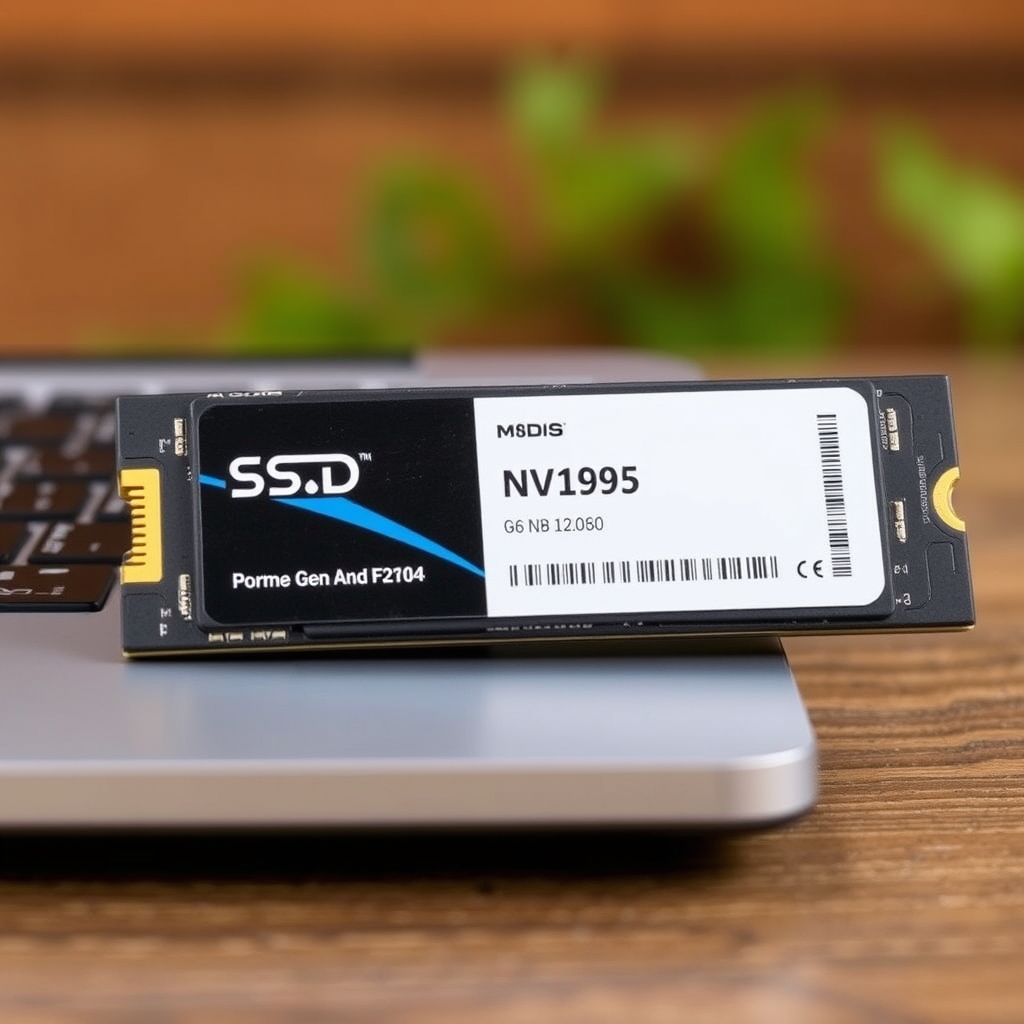
Upgrading a laptop’s storage can make a noticeable difference, but choosing an NVMe Gen 4 SSD is not simply a matter of buying the drive with the highest advertised read speed. The laptop must support the right PCIe generation, physical M.2 size, single- or double-sided layout, and thermal requirements. Checking these details first helps avoid a drive that cannot reach its advertised performance—or does not fit at all.
Check PCIe Compatibility
NVMe SSDs communicate with the system through PCI Express (PCIe). PCIe 4.0 offers roughly twice the theoretical bandwidth of PCIe 3.0. High-end Gen 4 drives can advertise sequential read speeds around 7,000 MB/s, but those figures are useful only when the laptop’s M.2 slot and platform support PCIe 4.0.
A Gen 4 drive can generally operate in a compatible PCIe 3.0 slot, but it will run at the lower interface’s limits. Before purchasing, check the official specification or service manual for your exact laptop model. Do not rely only on the processor family: manufacturers may wire different slots or use different configurations across models.
Confirm the M.2 Size and Key
M.2 describes a physical form factor, not the storage protocol. Common size labels include 2280, 2242, and 2230: the first two digits indicate width in millimetres and the last two indicate length. Many conventional laptops use 2280 drives, while thin systems may require a shorter module.
Also check the slot’s keying and supported protocol. NVMe drives commonly use an M-Key connector, while some older M.2 slots support SATA rather than NVMe. Never force a module into a connector that does not match.
Single-Sided vs. Double-Sided Drives
Some high-capacity SSDs place memory chips on both sides of the circuit board. A thin laptop may not have enough clearance for a double-sided drive. Check the manufacturer’s compatibility notes and the laptop’s service documentation before buying a high-capacity model. If clearance is limited, a single-sided drive may be the safer choice.
Plan for Heat Management
Fast NVMe controllers can become hot under sustained workloads. When temperatures rise too far, the drive may use thermal throttling and reduce performance to protect itself. Desktop heatsinks are often too thick for laptops, so do not assume a drive with a large preinstalled heatsink will fit.
If the laptop includes a thermal pad or shield, follow the service manual when transferring or replacing it. Avoid bending the drive or stacking improvised thermal materials that could interfere with the enclosure.
Look Beyond Sequential Speed
- Random IOPS: Measures how efficiently a drive handles many small, scattered operations, which can matter for operating systems and applications.
- DRAM and HMB: Some SSDs use onboard DRAM for mapping data; others use Host Memory Buffer to borrow a small amount of system memory. The best choice depends on workload and budget.
- Power efficiency: Power use affects battery life and heat. Look for independent tests that include active and idle consumption.
- Sustained performance: Short benchmark bursts may not represent long file transfers after an SSD’s cache is exhausted.
Migrate Your Data Safely
You can clone the existing drive to the new SSD or perform a clean operating-system installation. Cloning preserves applications and settings but may require an external NVMe enclosure. A clean installation removes accumulated software and gives you a fresh starting point. In either case, make a separate backup of important files before changing partitions or replacing hardware.
Conclusion
Choosing an NVMe Gen 4 SSD for a laptop requires checking interface support, M.2 dimensions, connector compatibility, component clearance, cooling, and real-world performance. Confirm the exact laptop model’s documentation before buying, keep a backup, and choose a drive that fits the system rather than paying for specifications the laptop cannot use. For another storage comparison, read our guide to SSD vs. HDD for backup storage.
Leave a comment