
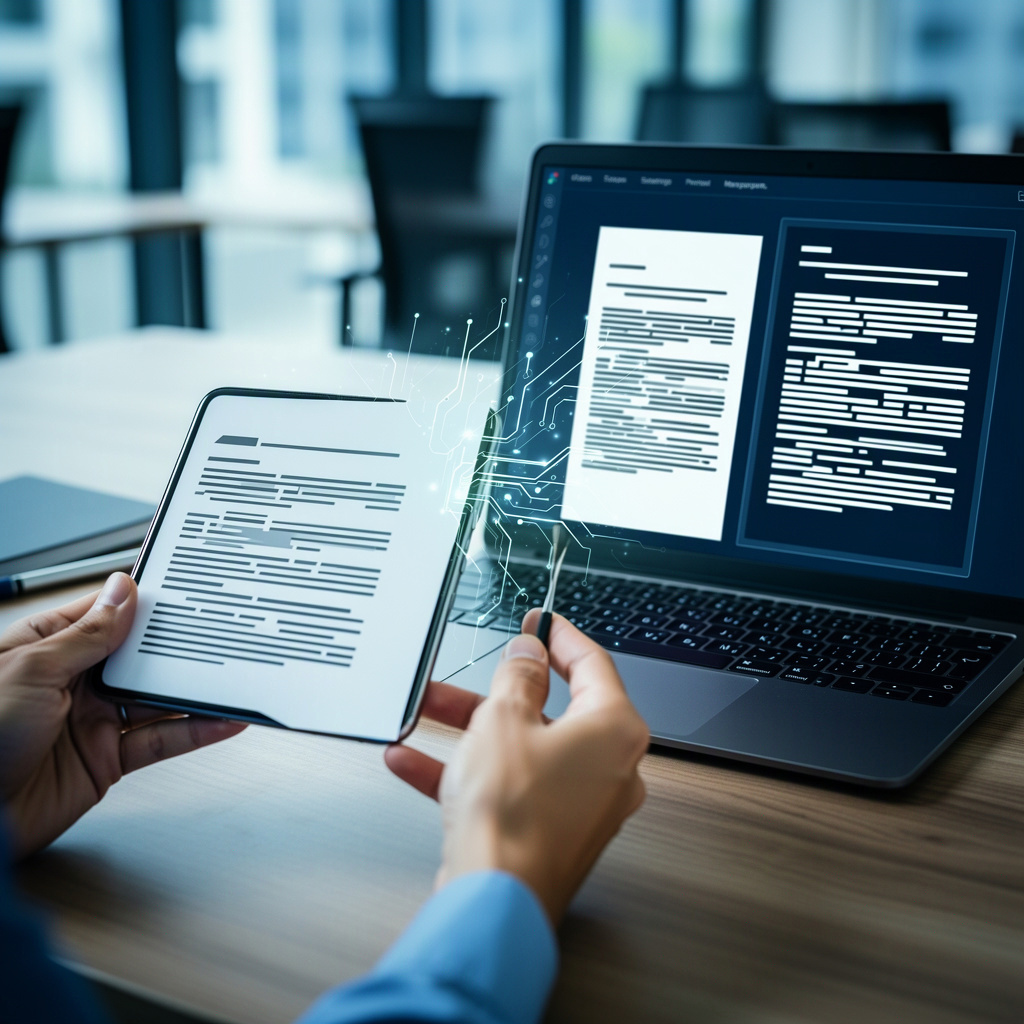
Scanned PDFs, photographs of documents, and images of printed pages are not immediately searchable or editable as text. Re-typing them manually takes time and introduces errors. Optical Character Recognition (OCR) software analyses the shapes of characters in an image and converts them into digital text that can be searched, copied, or edited.
How OCR Works
A computer initially treats a scanned page as pixels rather than words. OCR software analyses contrast, identifies likely text regions, separates lines and characters, and uses recognition models to infer the text. Modern systems may also use machine learning to handle different fonts, skewed pages, and some visual noise. The output can be exported to formats such as TXT, DOCX, or searchable PDF, depending on the application.
Choose an OCR Tool for the Job
Desktop and open-source tools can be useful when privacy and local processing matter. Tesseract is a widely used open-source OCR engine that supports many languages and can be run from the command line. For Indonesian text, install the appropriate language data and use the language code when processing a file:
tesseract scanned-document.png output-text -l indThe command writes recognised text to an output file. Tesseract can also be integrated into scripts and batch workflows. Users who prefer a graphical interface can choose a desktop application built around an OCR engine.
Mobile scanning apps are convenient for quick captures of receipts, book pages, or whiteboards. Their results depend heavily on camera focus, lighting, perspective, and how steady the phone is held.
Improve Recognition Accuracy
- Use even lighting. Shadows and glare can hide parts of characters or reduce contrast.
- Keep pages flat. Curved or folded pages distort text. A flatbed scanner is often preferable for documents that require high accuracy.
- Choose the correct language. Language data helps the OCR engine distinguish words and characters that look similar.
- Crop irrelevant areas. Removing large photos, borders, and unrelated graphics can help the engine focus on text.
- Review the output. Always check names, numbers, dates, and technical terms, especially when the source is faint or uses decorative fonts.
Privacy When Using Online OCR
Web-based OCR services are convenient because they require little setup, but uploaded documents may contain contracts, medical information, financial reports, or personal identifiers. Before uploading, read the provider’s privacy policy and check how long files are retained, whether they are used to train models, who can access them, and how deletion works.
For highly confidential material, local OCR software may provide better control because the document can be processed on a device you manage. Local processing still requires normal device security, backups, and access controls.
Preparing Documents Before Scanning
OCR quality is decided before the software runs. Start with the cleanest source you can get: remove staples and sticky notes, flatten folded pages, and wipe smudges from the scanner glass. A page that is straight and evenly lit gives the recognition engine far less work than a skewed photograph taken in poor light, and the difference shows in the output.
Resolution matters as well. A scan at a moderate resolution usually captures printed text clearly, while a very low resolution scan loses thin strokes and small punctuation. Scanning in grayscale is often enough for plain text and produces smaller files than full colour. Colour is worth keeping when the document uses colour to carry meaning, such as highlighted passages or coloured form fields that need to be distinguished.
When photographing pages with a phone, hold the device parallel to the page and fill the frame with the document. Take the photo from directly above rather than at an angle, and avoid shadows cast by your hand or the phone itself. If the page is bound in a book, press it as flat as practical and photograph one page at a time rather than a spread, because curved text near the spine is a common source of errors.
Batch Processing and Automation
Processing one page at a time is fine for occasional use, but a stack of scanned reports calls for a repeatable workflow. Organise incoming scans into one folder, run OCR over the whole folder, and write the results into a matching output folder with the same file names. Keeping input and output separate makes it easy to re-run the process when settings change without mixing originals and results.
Command-line tools fit naturally into this kind of workflow. A short script can walk through a folder, run the OCR engine on each file, and record which files succeeded. Adding a simple log of file names and completion status helps when a batch contains hundreds of pages and one file fails partway through. For recurring jobs, the same script can run on a schedule so new scans are processed without manual steps.
Consider producing searchable PDFs as the output format for archives. A searchable PDF keeps the original page image and adds an invisible text layer, so the document looks unchanged while becoming searchable. This is useful for contracts, receipts, and meeting notes that may need to be found months later by a keyword search.
Handling Handwriting and Difficult Layouts
Printed text is the home ground of OCR, and other layouts need different expectations. Handwriting varies widely between people, and even handwriting recognition tools that handle it well still make mistakes on unusual words, abbreviations, and numbers. Treat handwritten results as a draft that needs checking, and verify names, amounts, and dates by eye before using them anywhere important.
Tables, multi-column pages, and forms are another challenge. The engine reads line by line, so a two-column article may come out with lines from both columns interleaved, and table cells may lose their alignment. Some tools offer layout analysis or region selection that helps, but complex pages often need manual review. For forms, it can be more reliable to define fixed regions for each field rather than letting the tool guess the reading order.
Damaged or faded originals deserve realistic expectations too. Faded print, water damage, and photocopies of photocopies all reduce accuracy. In these cases, improving the scan — adjusting contrast, cleaning the image, or rescanning the original — usually helps more than changing OCR settings. If the source is too degraded, manual transcription of the worst pages may be faster than correcting a long list of errors.
Storing and Searching OCR Results
Extracted text is only useful if it can be found again. Give output files descriptive names that include a date or document type, and keep them in folders that match how you search: by project, by client, or by year. A consistent naming habit turns a folder of text files into a searchable archive instead of a pile of files named after the scanner’s defaults.
For larger collections, a desktop search tool that indexes file contents can find a phrase across hundreds of documents in seconds. This works best when the OCR output is stored as plain text or searchable PDF rather than locked inside an image. Before relying on search results, remember that OCR errors can hide a document: a misread word will not match a search for the correct spelling, so important searches may need a couple of spelling variants.
Finally, decide how long to keep the original scans. The recognised text is a convenience, but the original image is the evidence. For receipts, contracts, and official letters, keep the original scan alongside the text output, and back up both. If a dispute arises later about what a document actually said, the image is what matters, not the OCR interpretation of it.
Conclusion
OCR can reduce manual data entry and make scanned documents searchable, but the best tool depends on document volume, language, accuracy requirements, and privacy needs. Start with good-quality images, select the right language model, and review important output before relying on it. Local tools such as Tesseract OCR are a useful option for workflows that need more control over document processing.
Leave a comment