
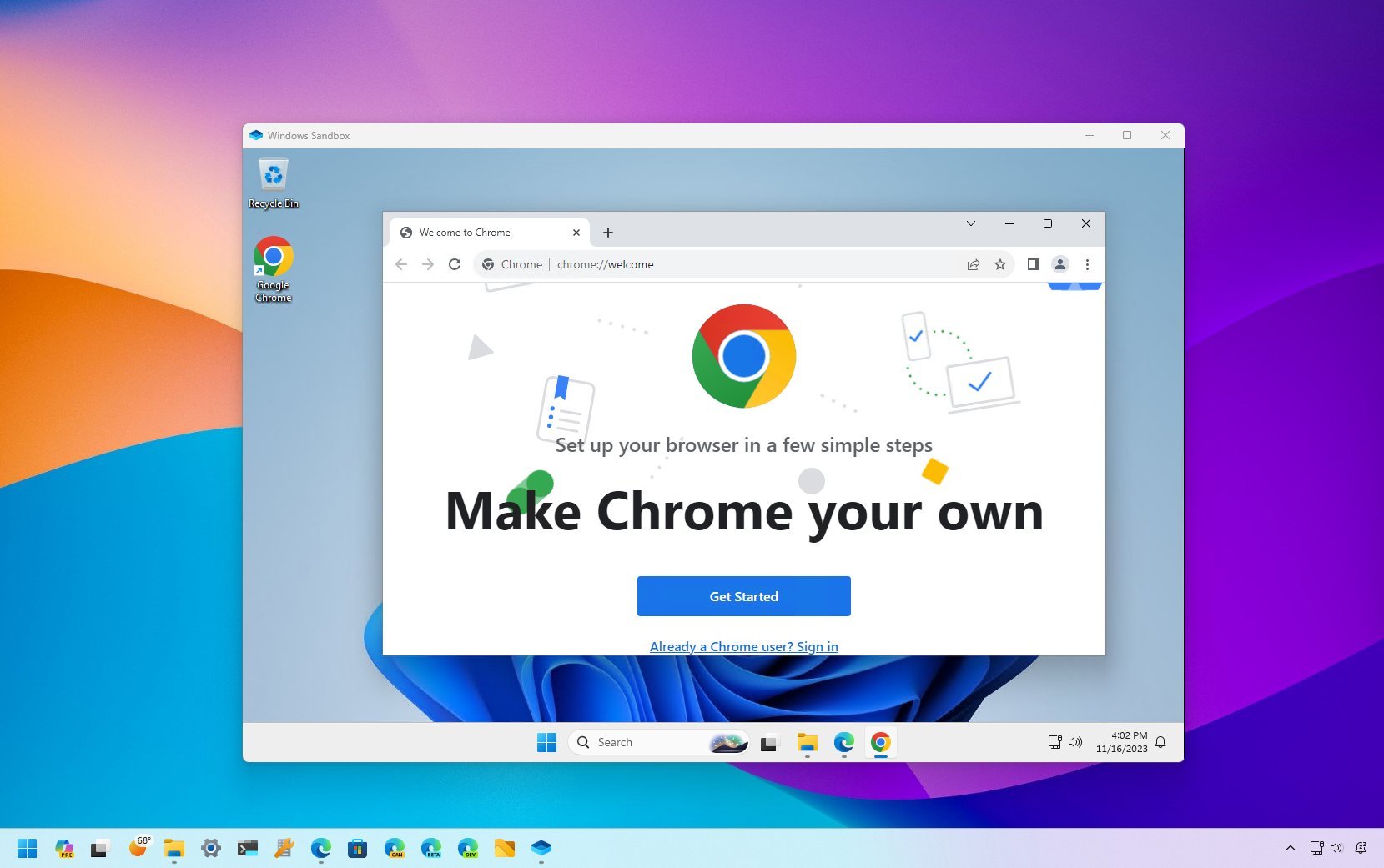
Downloading applications to try new features sometimes carries risks: installers may request unnecessary permissions, change system settings, or include unwanted components. One way to reduce such risks is to run applications in a separate environment. On supported Windows editions, Windows Sandbox provides a temporary desktop for testing software without making that environment a permanent part of your main Windows installation.
What Is Windows Sandbox?
Windows Sandbox is an isolated desktop environment provided by Windows for running applications. When Sandbox opens, Windows creates a temporary environment separate from your main session. When the window is closed, the contents of that environment are deleted. Because of this, Sandbox is suitable for initial inspection of unfamiliar installers or applications.
Sandbox is not a general-purpose virtual machine designed to host operating systems and work over the long term. Its environment is indeed temporary, and applications installed inside it typically need to be reinstalled when a new session begins. This separation helps limit the impact of changes that occur inside Sandbox, but it is not a guarantee that every threat will always be contained.
Check Requirements Before Enabling
Windows Sandbox availability depends on your Windows edition and configuration. This feature is generally available on supported Windows Pro, Enterprise, and Education editions, not on standard Home editions. Your Windows version, hardware virtualization support, and firmware settings also affect whether the feature can run.
Before proceeding, check your Windows edition via Settings → System → About. Ensure Windows is up to date and that virtualization is enabled in firmware if required. Requirements may vary between versions, so refer to official Microsoft documentation if the Sandbox option is not found or error messages appear.
How to Enable Windows Sandbox
- Open the Start menu and search for Turn Windows features on or off.
- In the Windows features list, find and check Windows Sandbox if available.
- Select OK, then wait for Windows to apply the changes.
- Restart your computer if prompted.
- Open the Start menu, search for Windows Sandbox, then launch the application.
If the Windows Sandbox option does not appear, do not download installation packages from random sites. Check your Windows edition, system updates, and virtualization support first. On corporate or school devices, administrator policies may also restrict this feature.
Safe Steps for Testing Applications
Once the Sandbox desktop opens, treat the environment as a testing space, not as somewhere automatically safe for everything. Download installers from the developer’s official website or trusted sources. Check the domain name carefully, avoid download links from suspicious advertisements, and do not disable antivirus just because an installer requests it.
If the file is already available on your main computer, do not immediately share your entire personal folder with Sandbox. File transfers can be done in a controlled manner, but the more host resources you share, the greater the exposure you need to consider. For sensitive files, use test copies that do not contain personal data.
Run the application and observe its behavior: does it request administrator rights without clear reason, try to install other programs, display unexpected connections or processes, or change configurations aggressively? This simple check is not a substitute for professional malware analysis, but it can help identify early warning signs. Do not log into your main account, enter important passwords, or open confidential documents inside the application being tested.
Important Notes About Networking and Files
Applications in Sandbox may be able to access the network, depending on configuration and device policies. This means the temporary environment does not automatically prevent programs from contacting servers on the internet. Avoid testing suspected malicious files on networks containing critical systems. For high-risk analysis, use dedicated laboratories with network isolation and appropriate procedures.
Do not assume files copied back to main Windows are automatically clean. If the application produces documents or archives, move them only when necessary and scan them with up-to-date security protection. Closing Sandbox deletes the temporary environment, but does not undo actions that may have already been taken outside that environment or on network services.
When Should You Use Alternatives?
Windows Sandbox is practical for quick testing, but it is not available on all Windows editions and is not suitable for every scenario. Self-managed virtual machines may be more appropriate when you need to keep snapshots, test configurations repeatedly, or use different operating systems. However, virtual machines also need proper configuration, including restrictions on shared folders, clipboard, USB devices, and networking.
For suspicious files, use multiple layers of checking: trusted download sources, digital signatures when available, antivirus scanning, and a testing environment appropriate to the risk level. Do not upload personal or confidential documents to public scanning services without understanding their privacy policies.
Conclusion
Windows Sandbox provides a practical way to try applications in a temporary, isolated Windows environment. Ensure your edition and device requirements support it, obtain applications from trusted sources, limit shared files, and do not enter credentials or sensitive data. Sandbox helps reduce risk, but does not replace caution, security updates, and responsible software testing habits.
Reference: Official Microsoft Documentation: Windows Sandbox.
Leave a comment