
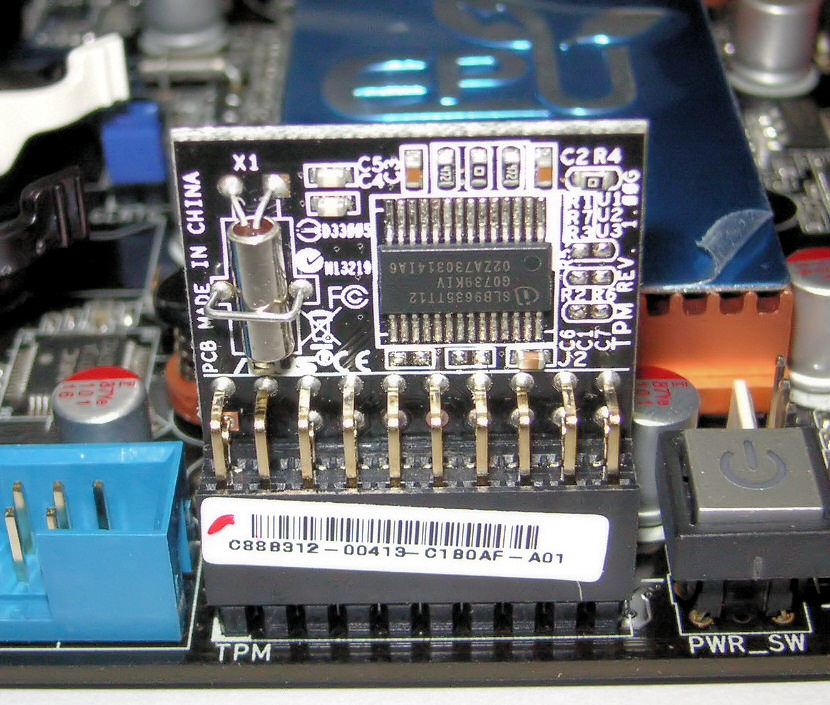
Computer security doesn’t rely solely on antivirus software and passwords. Protection also begins when your PC powers on, before Windows finishes loading. Two features commonly found on modern devices are Secure Boot and TPM 2.0. Each serves a different purpose and can work together to strengthen your system.
Understanding these features helps users check device readiness, especially when using Windows 11, device encryption, or identity protection features. Before changing firmware settings, it’s also important to know precautionary steps to keep your data access secure.
What Is Secure Boot?
Secure Boot is a security feature in UEFI firmware that checks digital signatures of critical components during the early computer startup process. Its purpose is to ensure that the operating system loader and boot components meet the device’s trust policies. This can reduce the risk of malicious programs attempting to run before the operating system starts.
Secure Boot is not an antivirus scanner and does not guarantee complete computer security. Its protection focuses on the boot chain process. Once Windows is running, system updates, security protections, backups, and user habits remain important.
What Is TPM 2.0?
TPM, short for Trusted Platform Module, is a security component that provides cryptographic functions and key material protection. A TPM can be a dedicated chip or a firmware implementation provided by the platform. Windows utilizes it for various security functions, including supporting Windows Hello and BitLocker.
TPM does not automatically encrypt all files. Device encryption must be supported and properly configured. TPM helps protect keys or specific operations, while Secure Boot checks components at the early boot stage. Because their tasks differ, one feature does not replace the other.
Differences Between Secure Boot and TPM 2.0
- Secure Boot: checks boot component signatures based on policies and certificates in UEFI firmware.
- TPM 2.0: provides cryptographic functions and key protection that can be used by the operating system.
- Their relationship: both can work together, but must be checked separately. Secure Boot does not require TPM as part of its core mechanism.
This means an active status on one feature does not prove the other is also active. Check each one using built-in Windows tools before making changes.
How to Check Secure Boot in Windows
- Press Windows + R to open the Run dialog.
- Type
msinfo32, then press Enter. - In the System Information window, look for the Secure Boot State section.
- If it says On, Secure Boot is active. If Off, the feature is disabled. If not available, check boot mode and device support before changing anything.
Column names may vary depending on language and Windows version. If the status is Off, don’t immediately change firmware settings. Make sure your device actually supports the feature and check your computer or motherboard manufacturer’s official guide.
How to Check TPM 2.0
- Press Windows + R.
- Type
tpm.msc, then press Enter. - Check whether the TPM is reported as ready for use.
- Look for Specification Version in the TPM manufacturer information section. For Windows 11 requirements, the relevant version is 2.0.
A message that no compatible TPM was found doesn’t always mean your computer lacks one. The TPM may not be enabled in firmware. Also check Windows Security, then open Device security to see security processor information available on your device.
If One Feature Isn’t Active Yet
Secure Boot and TPM settings are usually located in UEFI/BIOS, but menu names vary by manufacturer. Firmware TPM may be called Intel PTT, AMD fTPM, Security Device, or similar names. Secure Boot is generally found in the Boot or Security menu.
Before making changes, follow these steps:
- Confirm your computer or motherboard model and read the manufacturer’s guide.
- Save your work and back up important data.
- If BitLocker or Device Encryption is active, make sure recovery keys are stored somewhere safe and accessible.
- Change one setting at a time, then recheck its status in Windows.
Firmware changes can trigger BitLocker recovery key requests. Don’t delete or reset TPM as a test, as this can make keys or credentials that depend on TPM no longer available. If unsure, seek guidance from your device manufacturer or IT administrator.
Do These Features Make Your PC Completely Secure?
No. Secure Boot and TPM 2.0 are part of layered defenses. Neither replaces security updates, protected user accounts, regular backups, screen locks, or vigilance against suspicious files and links. Ensure Windows and firmware receive official updates, use strong authentication, and store recovery keys separately from your device.
For technical details, users can read Microsoft’s official documentation on TPM 2.0, Device Security, and Secure Boot and Trusted Boot. Follow instructions appropriate for your device model because firmware menu locations and names are not always the same.
Conclusion
Secure Boot helps check critical components at the early boot stage, while TPM 2.0 supports cryptographic functions and key protection. Check the status of both through msinfo32, tpm.msc, and Windows Security before changing settings. By understanding the differences and keeping recovery keys stored securely, users can strengthen PC protection without making firmware changes recklessly.
Leave a comment